Administration Interface
The administration interface is available only for the manager of the organization.
To open the administration interface, go to Administration in the left bar menu.
Dashboard
This page is your organization main dashboard:

- Current usage: this section displays the number of active (running) devices and other information related to your current subscription.
-
Usage history: in this section, you can export your organization's users consumption data for a selected date range, with the number of instances started and total runtime used per user in CSV or XLSX formats.
Click to set the time period, and click to export the data.
Manage users
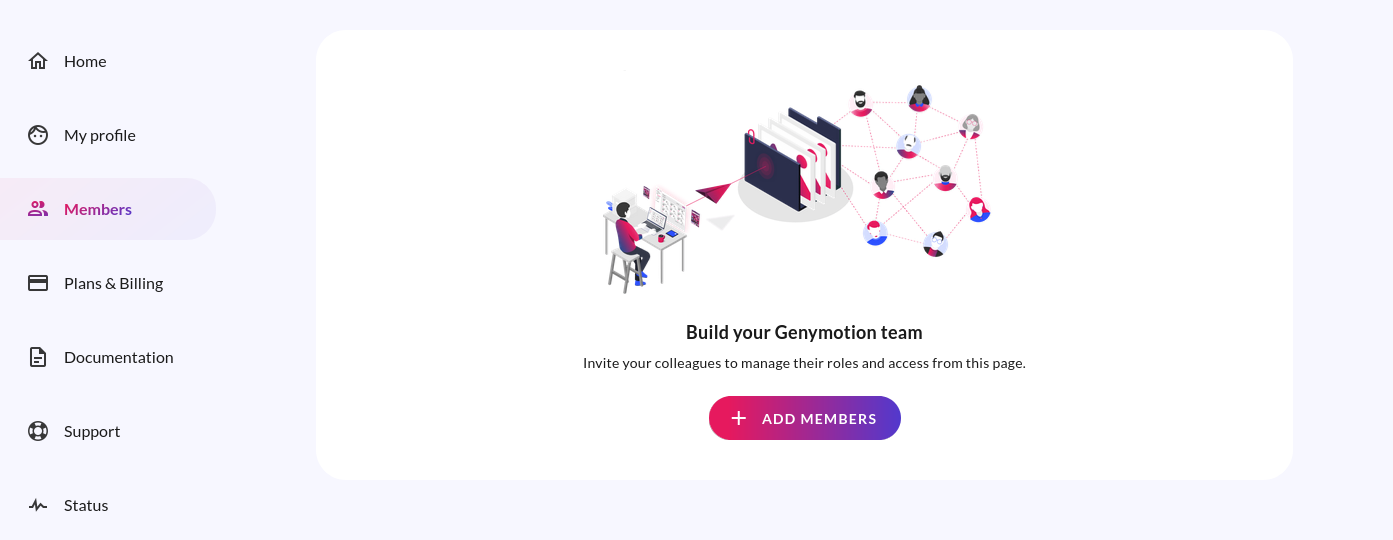
You can view and manage your organization users by clicking on the Users tab. This will redirect you to the Members page of your Genymotion account:
Adding users to your organization
Click ADD MEMBERS to invite users to your organization. Enter the recipient email address in the Email addresses field and click INVITE or press Enter. Repeat the operation if you wish to invite multiple users:
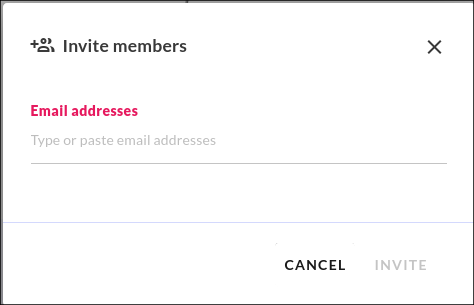
You can also copy and paste a list of emails separated by commas. For example: [email protected],[email protected],[email protected]
You can add up to 50 emails.
You cannot invite people who are already members of another organization.
Temporary email (also known as disposable) providers are not allowed for registration.
The invited person will receive an invitation email with a link to activate their account, and then they will have to create an account using Single Sign-On (SSO) or email.
When using SSO, the Gmail or Github account of the invited user must match the email in the invitation.
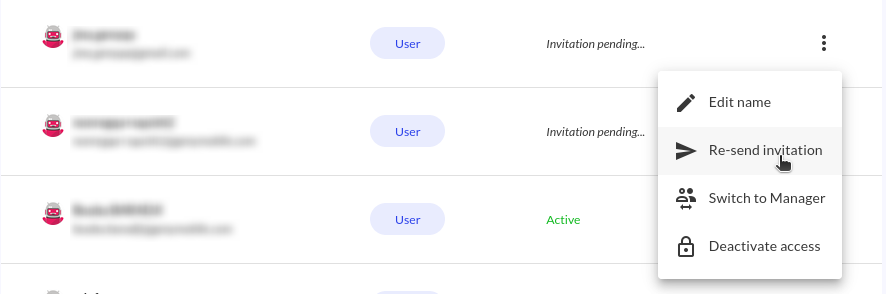
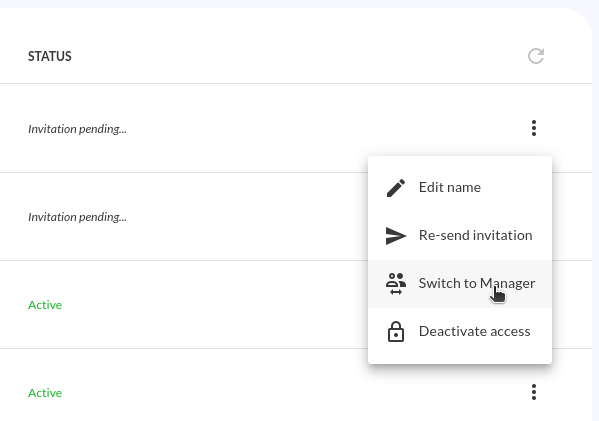
You can also resend invitations to pending members to remind them to join your organization. Click and select Re-send invitation at the end of the line of the desired pending user to resend an invitation:
Deactivate users
To deactivate a user, click and select Deactivate access at the end of the line of the desired user:
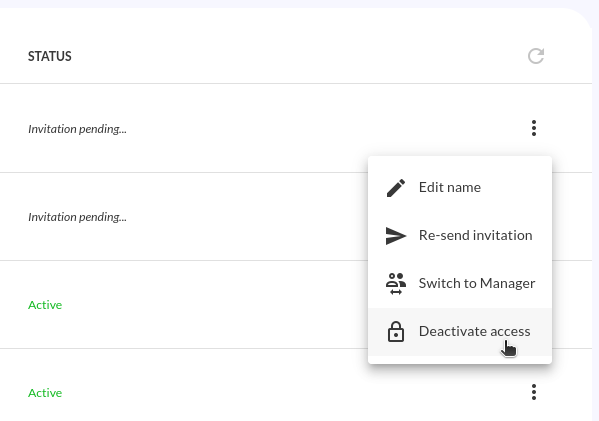
Deactivated users will no longer be able to log in to their Genymotion Account.
Defining organization user roles
To change a user's role to manager, click and select Switch to Manager at the end of the line of the desired user:
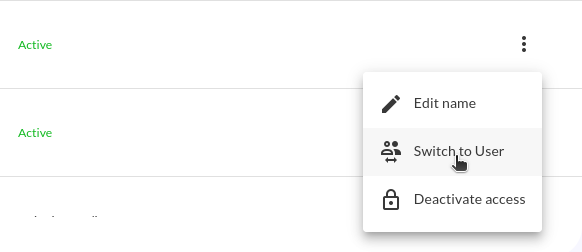
To change a manager's role to user, click and select Switch to User at the end of the line of the desired manager:
Editing user names
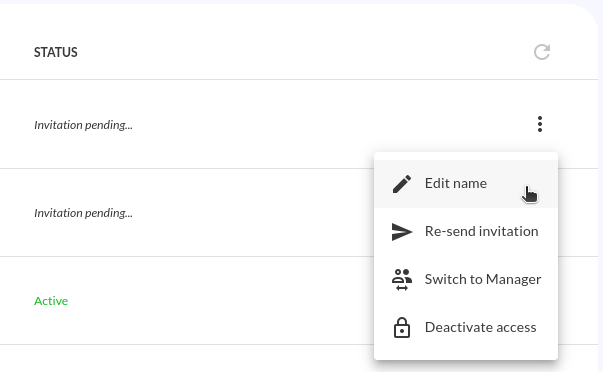
As the organization manager, you can set or change a user details by clicking and select Edit name at the end of the line of the desired user:
You can then edit a user's first and last names:
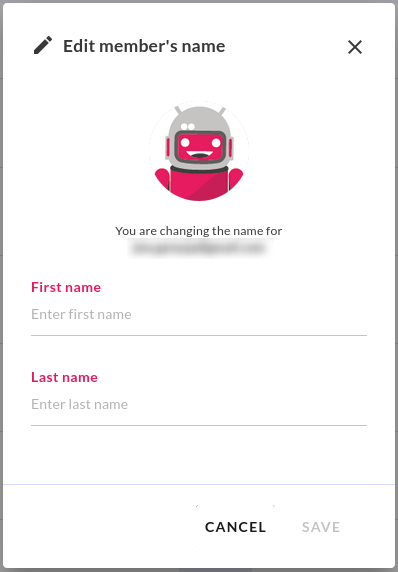
When the name is set, it appears instead of the user's email address in Genymotion SaaS.
Manage groups
You can view and manage your groups in the Groups dashboard:

Create groups
Click  to open the Create group modal:

Then, fill the fields:
- Name: name of the group.
- Description: short description of the group (optional).
- Group settings (optional): check the box to define the group as default.
- Choose parent group: if you wish to create a sub-group, search and select a parent group from the combo box.
- Allocated devices per group: if you wish to set a quota of devices for the group, uncheck Use organization resources pool (or Use parent resources pool for sub-groups) and use the slider to set the limit. See Group Quotas for more details.
- Add users (optional): use the combo box to search and add users from your organization into the group and click ADD. This step is optional: you can add users later.
Group users
Add users
Only users from your organization can be added. External users must be invited first.
-
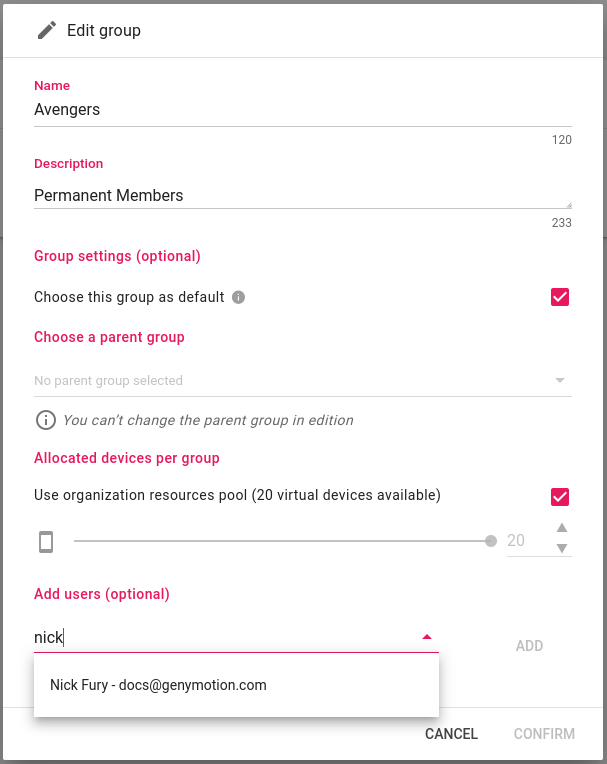
Click next to the group name to open the Edit group modal.

-
Use the combo box Add users (optional) to search and select a user. Click ADD to add the user:
Add users from a list sheet
You must create the users, groups, and sub-groups before adding users from a list sheet.
Supported list sheet formats are .csv, .xls and .xlsx
If you have many users to add in one or more groups, you can use a sheet list and import it.
To do so, click :

This will open the Import modal:

Download one of the templates and fill it accordingly:
Example in .csv format
email,group
[email protected],Avengers
[email protected],Avengers
[email protected],S.H.I.E.L.D
When done, drag'n drop it into the modal or click Upload file (.csv, .xls, .xlsx) to upload it. Click IMPORT to apply.
If there is an error, a file in the same format as the input file will be generated and downloaded to your browser downloads folder. This file will include the input data, plus additional columns indicating the errors (group not found, user not found, etc.).
Example in .csv
email,group,email_error,group_error
[email protected],Avengers,NotFound,
[email protected],Avengers,NotFound,
[email protected],S.H.I.E.L.D,NotFound,
Remove users
Click next to the user you wish to remove:

Then, click REMOVE to confirm:

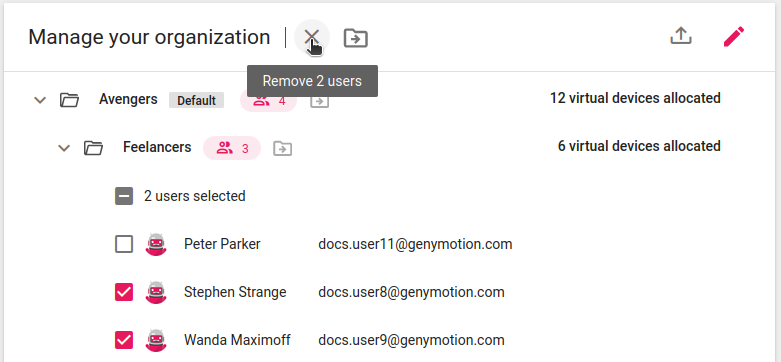
You can also bulk remove users:
-
Click to enable bulk edit mode:

-
Bulk select the users you wish to remove, and click :
-
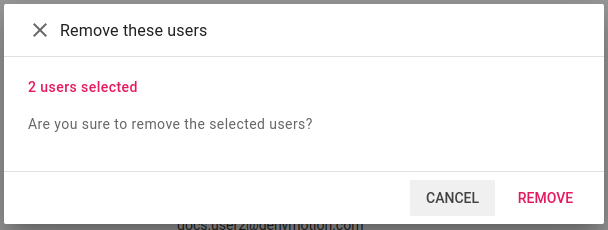
Click REMOVE to confirm:
Move users
-
Click to enable group and bulk edit:
In bulk edit mode, you can click Select All to select all the users of a group. Click again to de-select all.
-
Select the user(s) to move. Click :ic_folder-move-outline: and select the destination group:

or click :ic_folder-move-outline: next to the destination group:

-
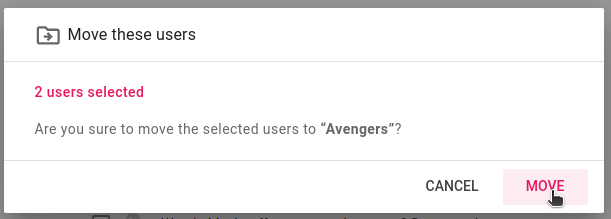
Click MOVE to confirm:
Group quotas
You can set maximum devices quotas for groups, either when creating a new group or by editing a group:
- Click next to the group name to open the Edit group modal.
-
Uncheck Use organization resources pool and use the slider to set the quota:

For sub-groups, this option is called Use parent resources pool.
-
Click CONFIRM to apply the change.
Group quotas are then displayed in the groups dashboard:

Warning
The sum of all the group quotas cannot exceed your organization maximum devices. For example, if your organization has 10 max devices and you already allocated 5 devices to one of your groups, you will only have 5 devices left to allocate to the other groups.
Note
Users who do not belong to any groups can start as many devices as allowed by the organization maximum devices, minus the allocated devices. For example, if your organization has 10 maximum devices, one group and there are 7 devices allocated to this group, users who do not belong to the group will be able to start 3 devices.
Sub-group quotas
You can also set quotas to sub-groups, but only within the allocated devices of the parent groups.
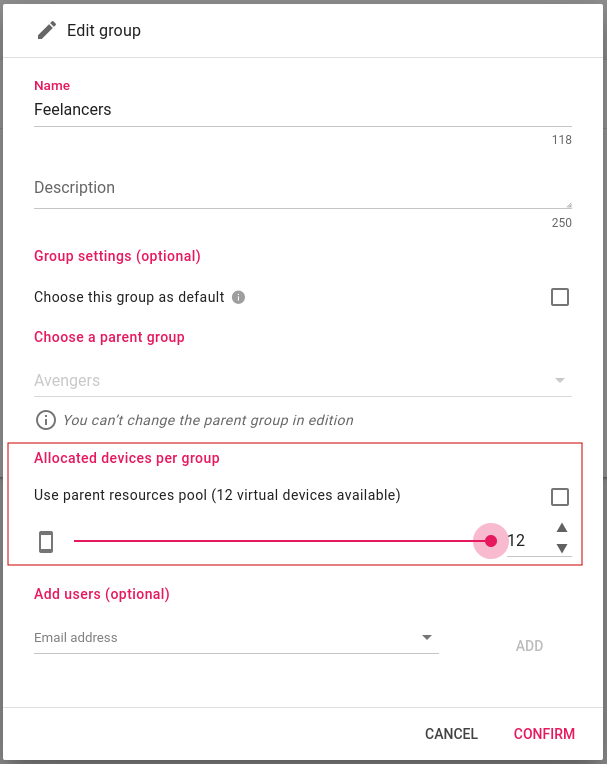
For example, if you have a group with 12 allocated devices, you can only allocate 12 devices max to its sub-groups.
Example
In this example, we have a sub-group Freelancers of the group Avengers. The parent group has 12 devices allocated, so it is only possible to allocate up to 12 devices to the sub-group:
Guests
Quotas apply to guest users in accordance to the recipe owner group's quota.
Example
Nick Fury belongs to the group Avengers which has only 12 allocated devices. If Nick Fury shares one of his recipes to a guest, then this guest can only run up to 12 devices with this recipe.
Remove groups
To remove a group, click next to the group you wish to delete:

Then, click DELETE to confirm:

Plans and Billing
Click Plans & Billing to be redirected to the corresponding section in your Genymotion account portal:
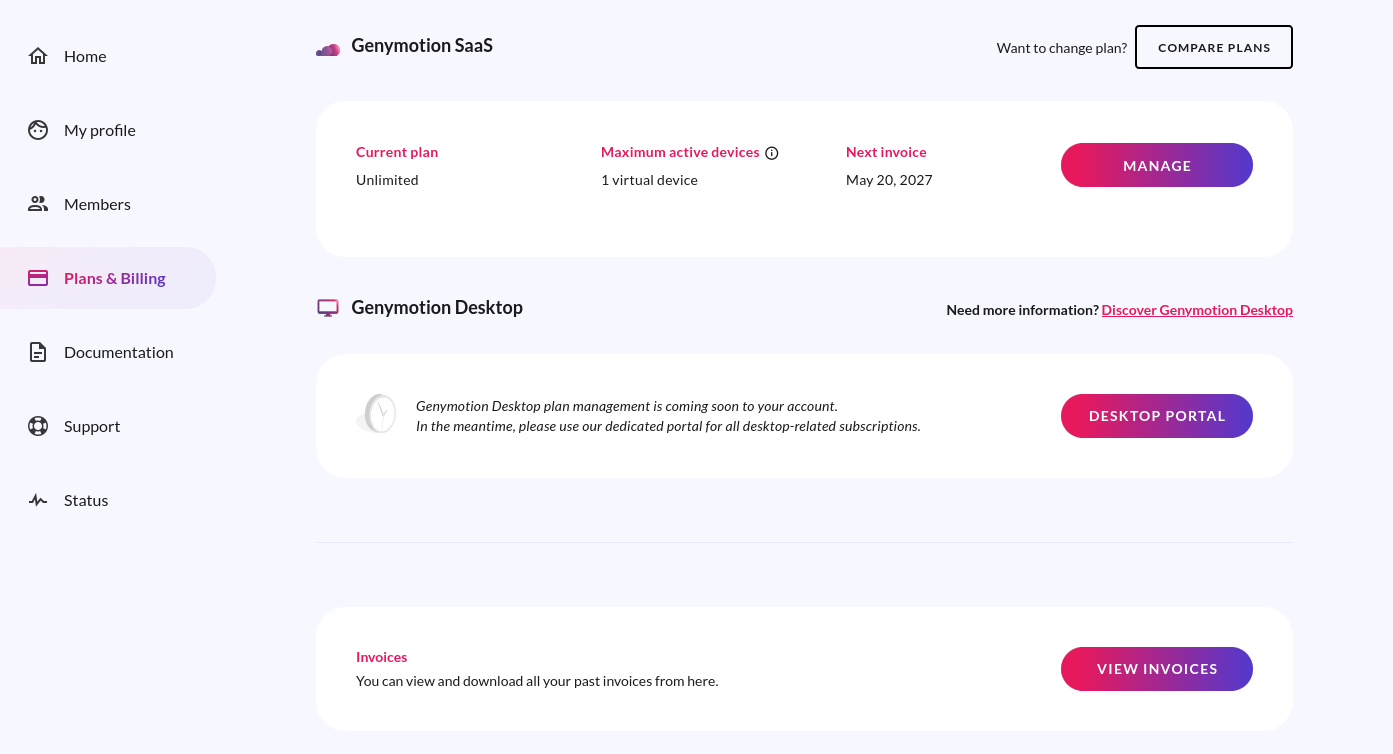
On this page, you can view, cancel or upgrade your current subscription. If you don't have a subscription, you can select one of our available plans from there. For more information about our current offers, please refer to the Pricing page.
You can also click VIEW INVOICES in the Invoices section to view and download all your past invoices.
Invoices
Click Invoices to be redirected to the Plans & Billing page from your Genymotion account portal. You can download all your past invoices from there.
Settings
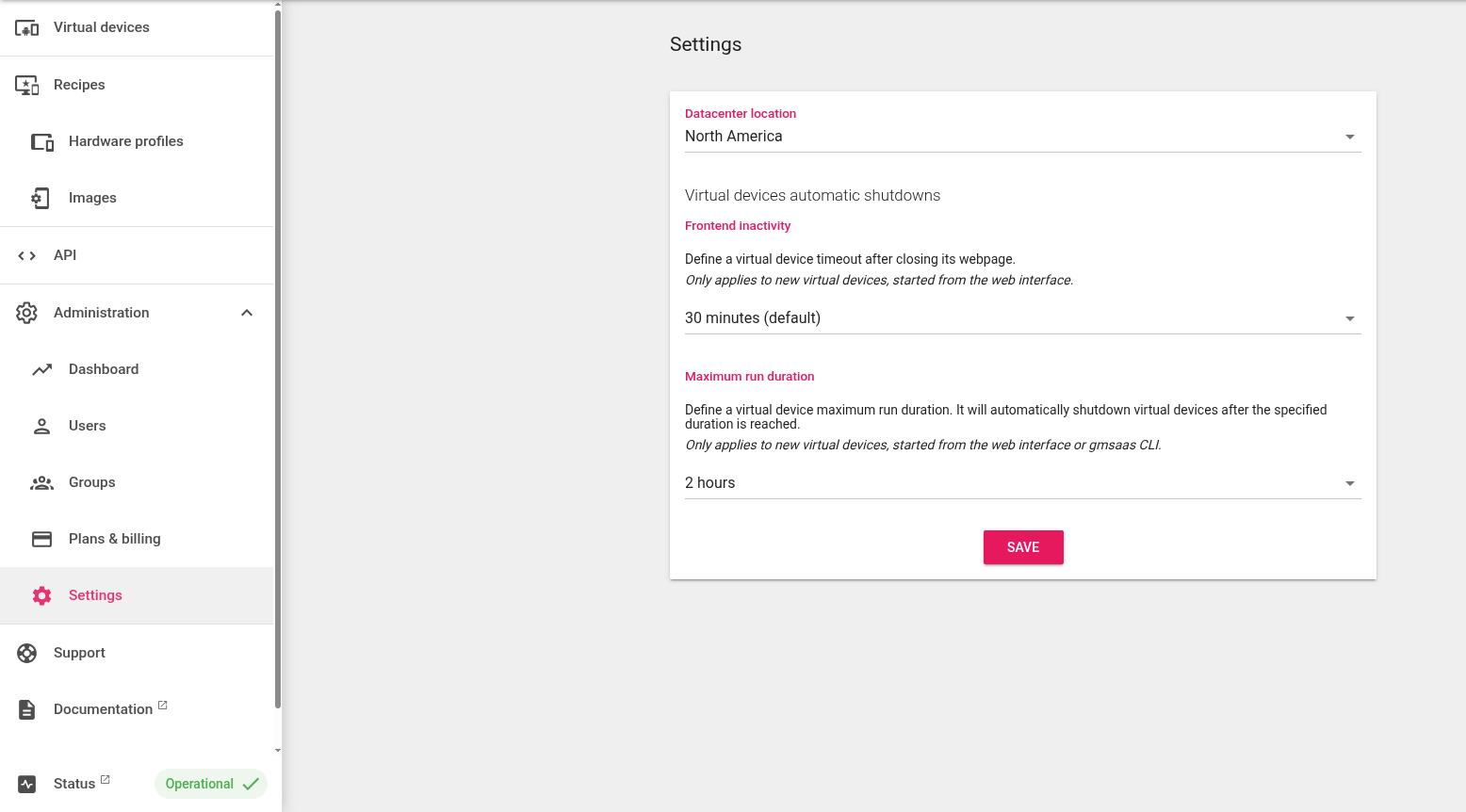
This page allows you to set the organization Datacenter location, Frontend inactivity timeout and Maximum run duration:
Datacenter location
By default, the location is North America.
The Datacenter location defines where you want your virtual devices hosts to be. Pick the nearest location for better performance.
You can also change the data center directly from the top toolbar. See Graphical Interface.
Frontend inactivity
Closing your web browser, tab or logging out will not stop your running virtual devices.
The Frontend inactivity setting allows you to configure the delay after which the device will be stopped in this case.
Frontend inactivity timeout will not apply if the device display webpage/tab is still opened, or the device has been started with gmsaas CLI tool.
Maximum run duration
The Maximum run duration setting allows you to configure the maximum duration time of your virtual devices. They will automatically shutdown after the specified duration is reached, whether or not they are active.
Countdown starts when the virtual device goes online.