Cloud Virtual Devices

You do not need a paid Genymotion Desktop license to use this feature.
You can view and access your Genymotion SaaS Cloud instances from Genymotion launcher.
In the Devices section, navigate to the CLOUD tab:
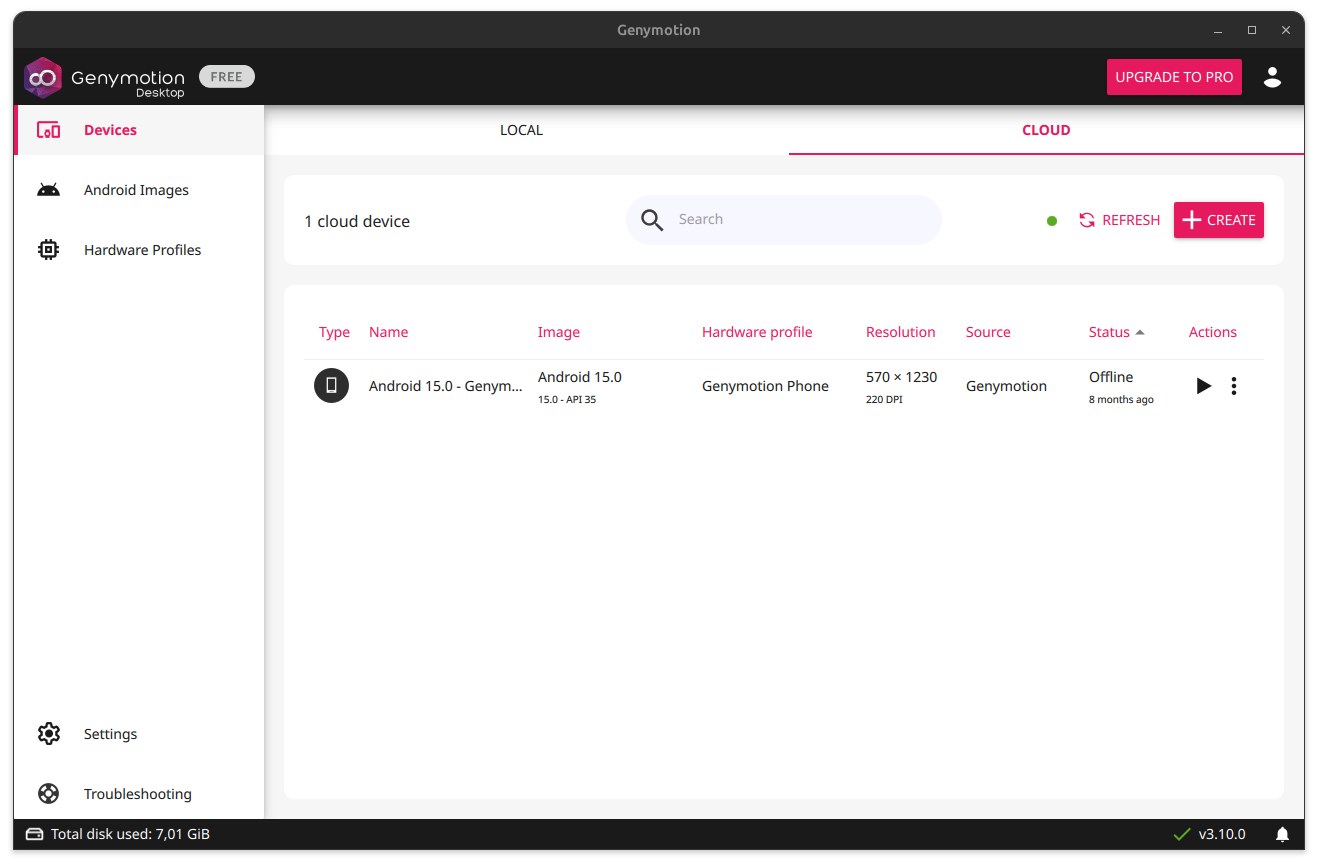
This tab lists your Genymotion SaaS devices. Devices that are not running can be started, and running devices can be viewed, stopped, etc.
If you are not connected to Genymotion SaaS yet, before interacting with devices you will be prompted to log in or create an account. Refer to the Genymotion SaaS quickstart guide if you need to create one.
Click REFRESH to refresh the list of devices.
For Genymotion SaaS users
The Cloud tab in Genymotion Desktop presents SaaS recipes and instances together as devices. Recipes appear as stopped devices, and running instances appear as online devices.
Create a new cloud device
Click CREATE to be redirected to your Genymotion SaaS dashboard, where you can create a new recipe (the SaaS equivalent of a device). Follow the instructions from the Genymotion SaaS user guide to do so.
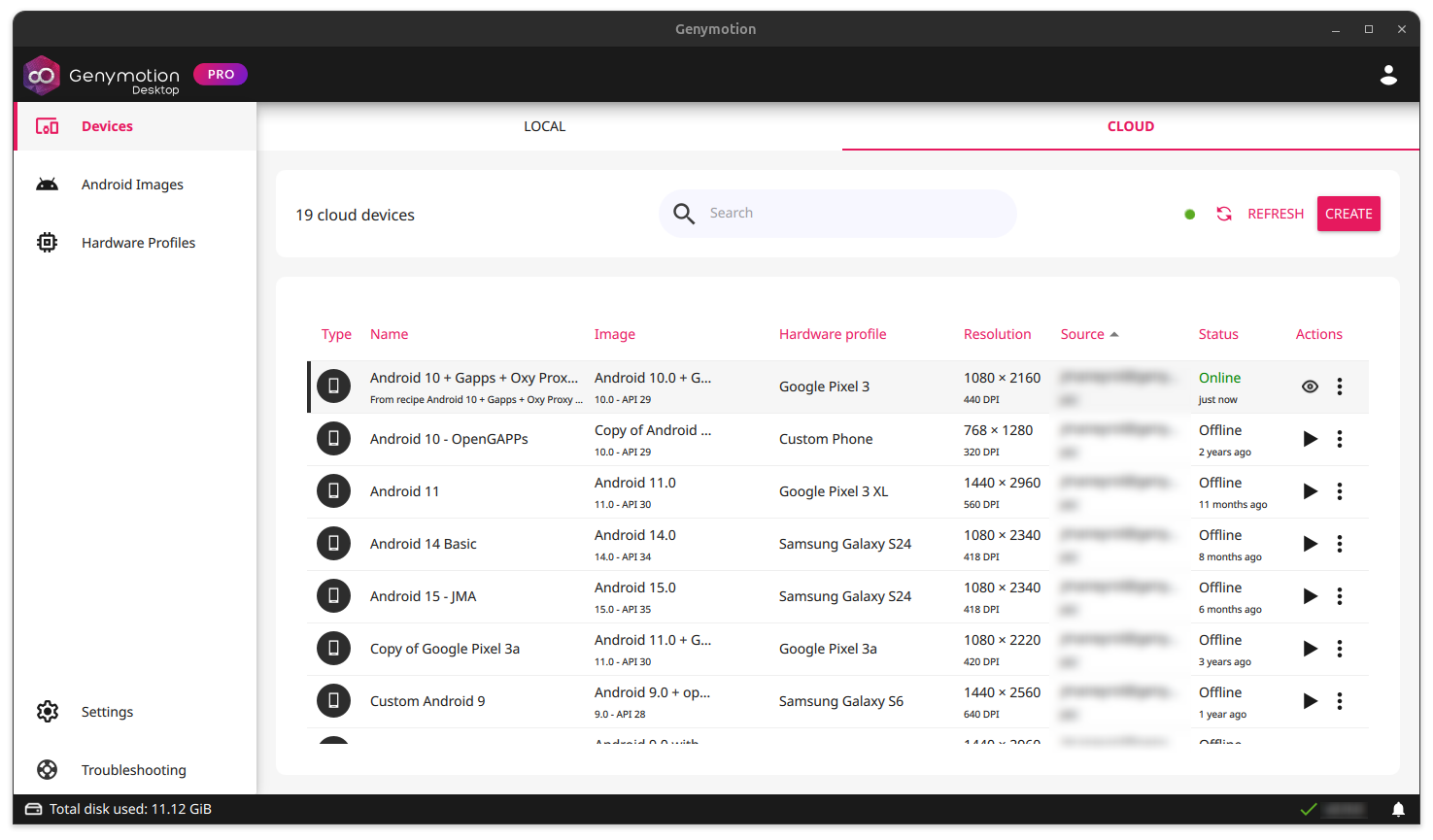
When done, your newly created device(s) will appear in the Cloud devices dashboard in Genymotion Desktop:
Start a cloud device
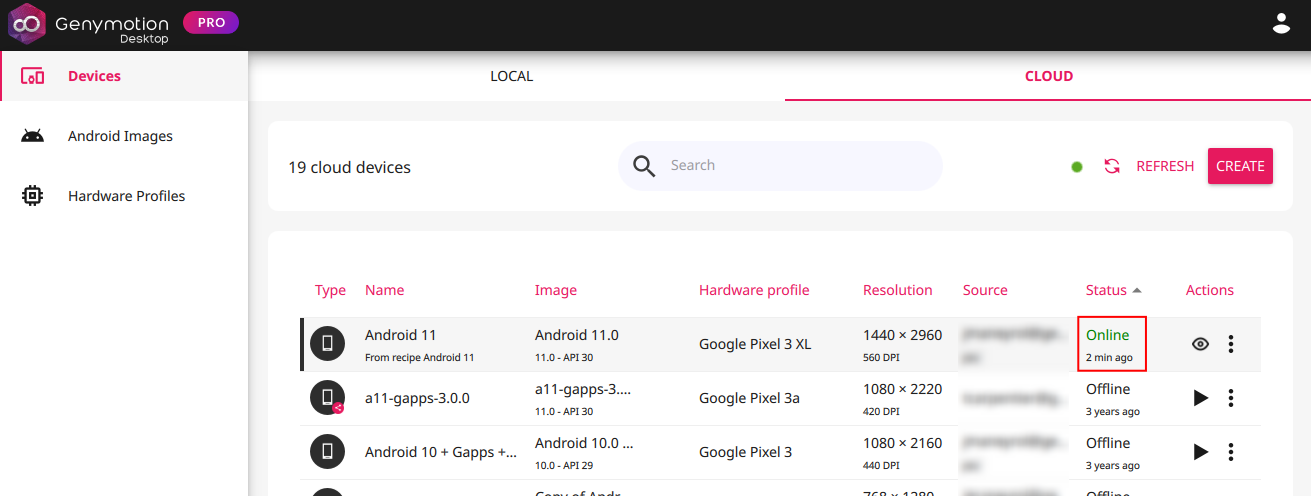
Simply double-click, click , or > "Start instance", next to the device you wish to start. When ready, the device will appear "Online" in the dashboard:
For Genymotion SaaS users
This corresponds to creating a new instance from the recipe in Genymotion SaaS.
Open a cloud device through Genymotion Desktop

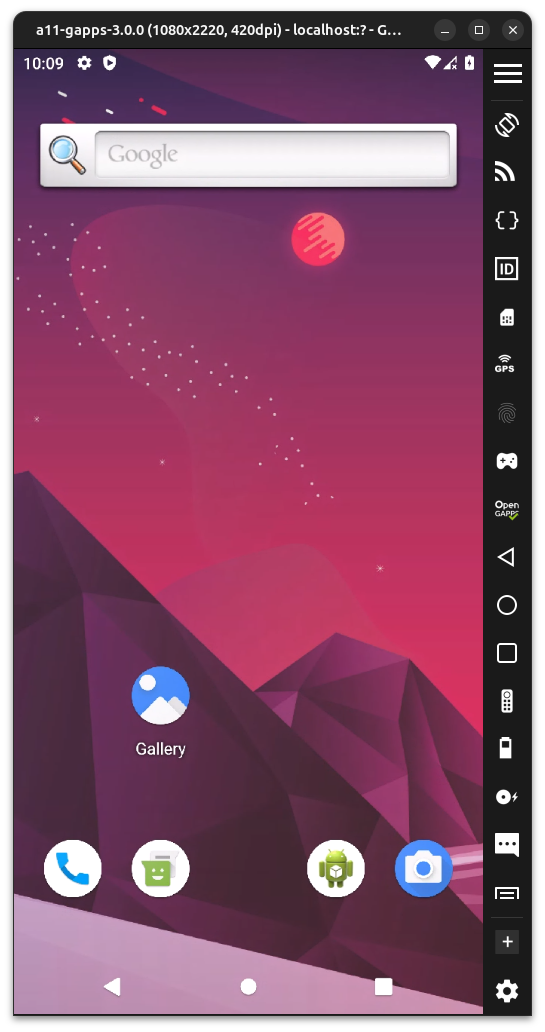
Once your device is online, click to open its display in Genymotion Desktop:
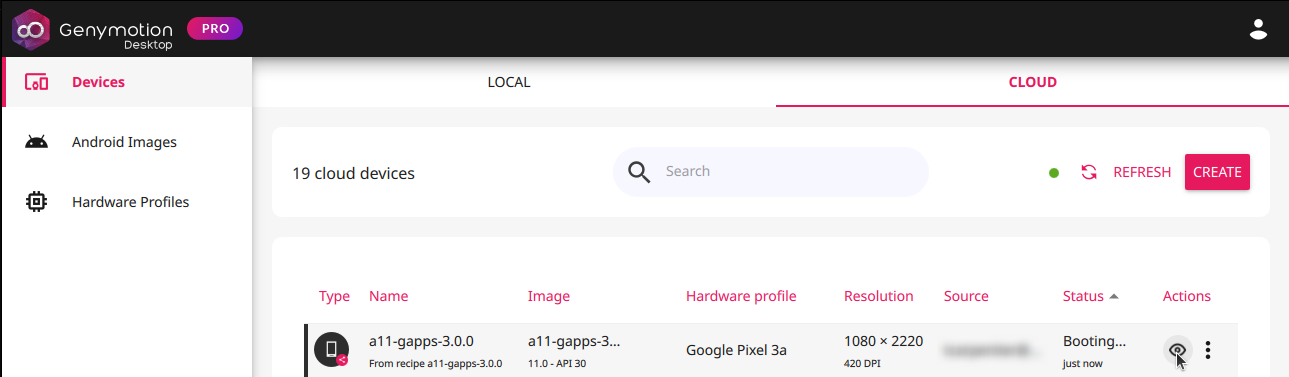
You can then operate your cloud device like a local virtual device:
Other actions
Right-click on a line, or click to open the actions menu:
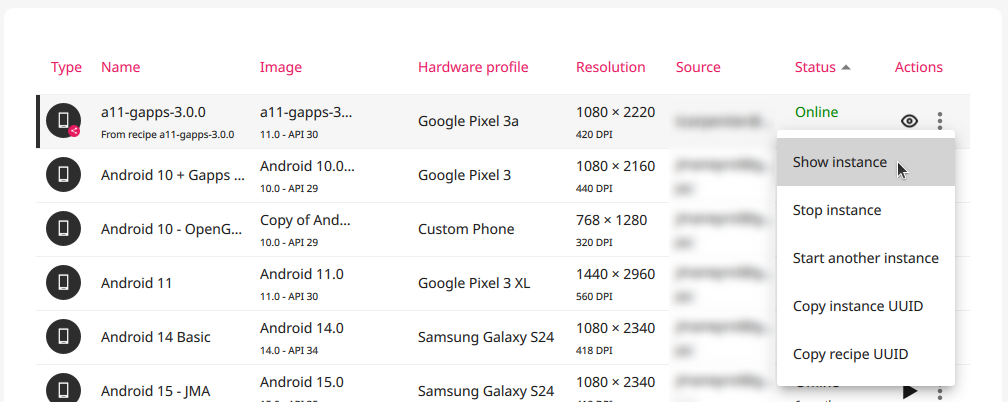
Then, select an action:
- Show instance: open the instance display in Genymotion, similar to the icon.
- Stop instance: stop the selected instance if it is running.
-
Start another instance: start another instance from the same recipe as the running instance.
This action will not stop the running instance!
-
Copy instance UUID: copy the instance UUID to clipboard.
- Copy recipe UUID: copy the recipe UUID to clipboard.
Instance and recipe UUIDs are generally used to automate operations with gmsaas CLI tool.