Camera and Media Injection
OBS Studio virtual camera does not work with Genymotion Desktop on Windows.


With this widget, you can select your host webcams, microphones, videos, images or audio files as the device camera and audio input source.
To open the widget window, click

With this widget, you can select your host webcams and microphones, or media files as the device camera input source. To open the widget window, click
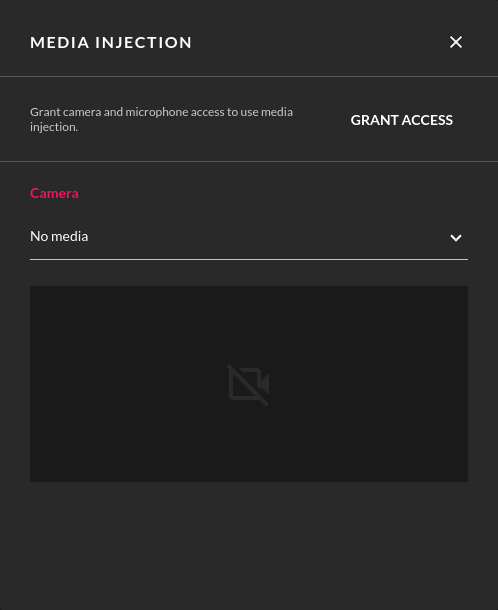
This feature is not available with Genymotion PaaS at this time.
Host physical webcam
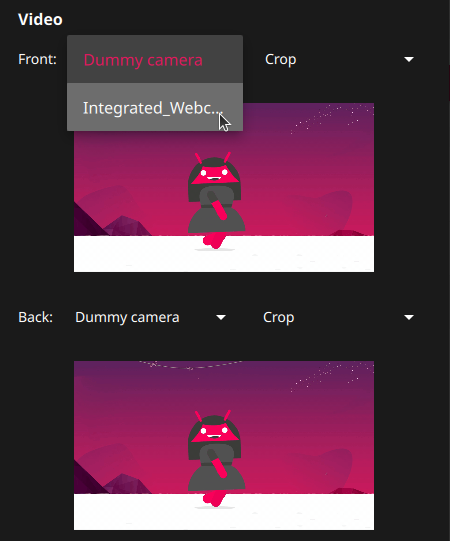
Your host physical webcam devices are listed in the Cameras box:

You can assign them to the virtual device front and/or back cameras in the Video section:
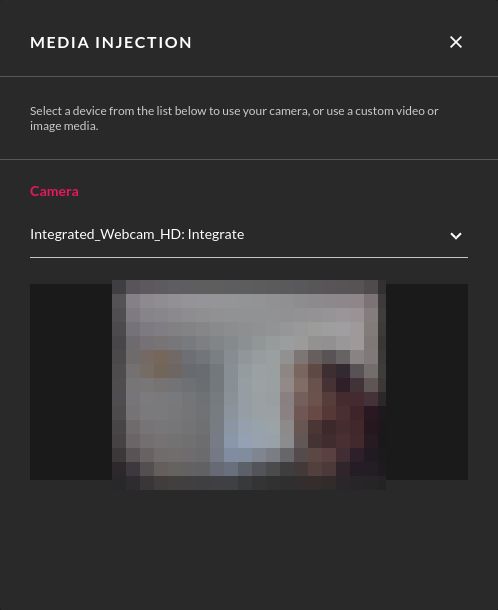
To use your host machine webcam device, click GRANT ACCESS. Your browser will then ask confirmation to grant access:
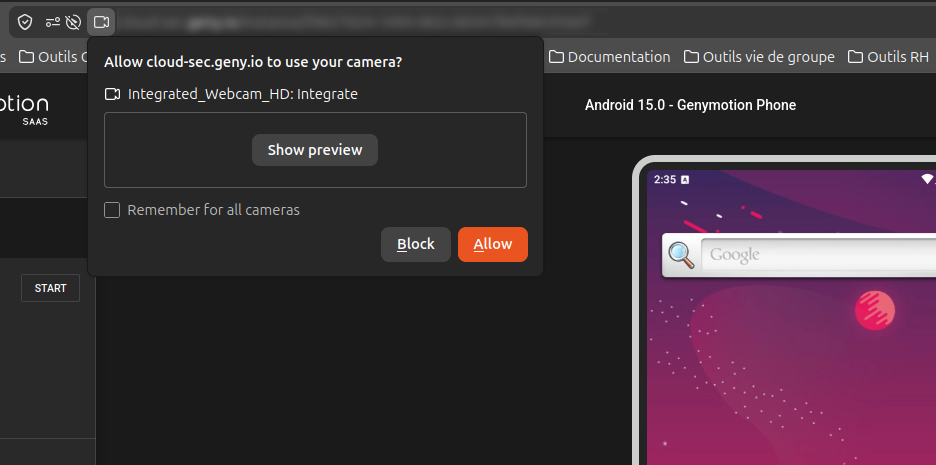
Your host machine webcam will then be available in the Camera drop-down list:
Media inputs
You can use image, video and audio files as audio and/or video inputs for the device.
Genymotion Desktop does not include any codecs: Most media files should work "out of the box" on Linux and macOS but you may need to install Codec packs on Windows, such as K-Lite Codec Pack Full .
-
In the Media files box, click OPEN MEDIA FOLDER:

-
Copy your media files to the opened folder. The files you added should appear in the Media files box.
Media folder
Genymotion Desktop media folder is located at the following path:
%LOCALAPPDATA%\Genymobile\Genymotion\media
$HOME/.Genymobile/Genymotion/media
$HOME/Applications/Genymotion.app/Contents/MacOS/media
When done, you can:
- click to play your media files.
- select an audio file as Microphone input.
- select a video or image file as front and/or back Camera input.
- resize the video or image. Available resize profiles are
Crop,Keep aspectandResize:
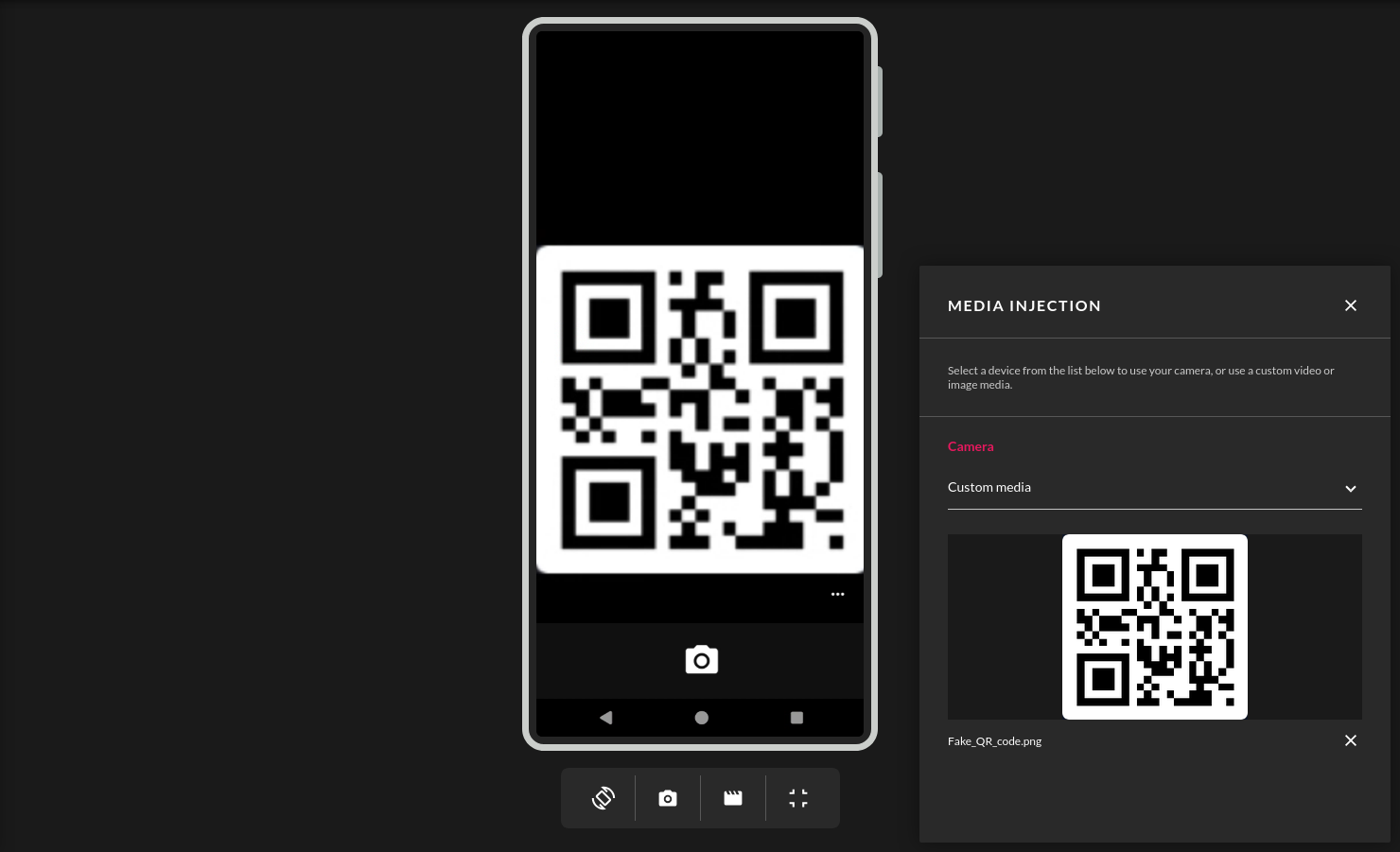
You can also inject media files (videos, images) to the device camera:
- In the drop-down list, select Custom media
- Drag'n drop your media file, or click Browse to browse your host machine folders
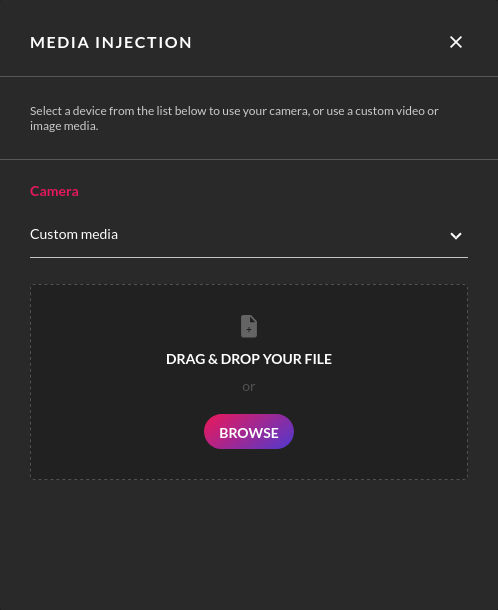
Your media file will then be displayed, or played if it is a video, in the device camera: